

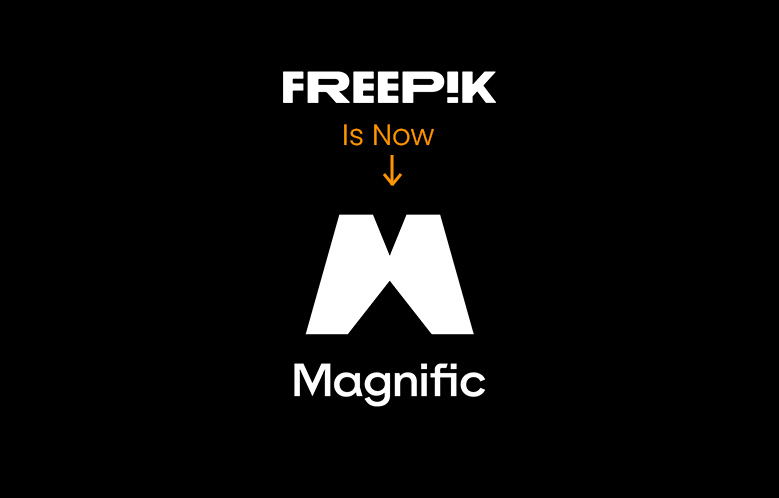
Freepik and Magnific have become closely connected in the AI creative ecosystem, but there is an important clarification: Freepik has not simply changed its name to Magnific. Instead, Freepik acquired Magnific and has integrated Magnific’s technology into its broader AI creative platform. Freepik’s current website describes Magnific as a company it acquired and offers Magnific-powered tools within Freepik.
This change has made several advanced AI image-enhancement capabilities available as part of Freepik’s growing creative ecosystem.
In this guide, we’ll explain what Magnific is, its relationship with Freepik, what happened after the acquisition, what Magnific can do, and how users can access its AI-powered image-enhancement features.
What Is Magnific?
Magnific is an AI-powered image enhancement and upscaling technology designed to improve image resolution while adding or refining visual details.
Unlike conventional image resizing, AI upscaling can analyze the visual content of an image and generate additional detail.
Magnific is particularly known for its ability to enhance:
- AI-generated images
- Digital artwork
- Illustrations
- Portraits
- Product images
- Low-resolution photographs
- Creative images
- Textures and fine details
Freepik currently integrates Magnific technology into its AI tools, including its image upscaling functionality.
Did Freepik Change Its Name to Magnific?
No.
This is an important distinction.
Freepik and Magnific are not simply two names for the same company. Freepik acquired Magnific and subsequently integrated its technology into the Freepik ecosystem.
Freepik’s own website currently describes Magnific as “recently acquired by Freepik” and presents Magnific alongside other AI models available through its creative platform.
Therefore, a more accurate description is:
Freepik acquired Magnific and integrated its AI technology into the Freepik platform.
This distinction is important for users searching for “Freepik new name Magnific” because the brands and technologies have a relationship, but Freepik itself has not been renamed Magnific.
Why Did Freepik Acquire Magnific?
The acquisition strengthened Freepik’s position in AI-powered creative tools.
Freepik already provides resources and AI features for designers, marketers, content creators, and other creative professionals. Integrating Magnific adds advanced image-enhancement and upscaling capabilities to this ecosystem.
The result is a broader platform combining:
- AI image generation
- AI image editing
- Image enhancement
- Image upscaling
- Stock assets
- Design resources
- Creative AI models
Freepik currently describes its platform as an all-in-one creative suite and lists Magnific among the AI technologies available through its ecosystem.
What Is Magnific AI Upscaler?
One of the most important applications of Magnific technology is AI image upscaling.
Traditional upscaling increases the number of pixels in an image. AI upscaling goes further by analyzing the image and attempting to reconstruct or enhance visual details.
Freepik’s current AI Upscaler includes Magnific models and states that images can be enhanced up to 16× clarity, depending on the selected model and workflow.
This can be useful when you have:
- A small image
- A compressed image
- An old photograph
- A low-resolution AI-generated image
- An image intended for printing
- Artwork that needs additional detail
Magnific vs Traditional Image Upscaling
Traditional resizing generally works by interpolating existing pixels.
AI upscaling takes a different approach.
A simplified comparison looks like this:
| Feature | Traditional Upscaling | AI Upscaling |
|---|---|---|
| Increases resolution | Yes | Yes |
| Adds generated detail | Limited | Yes |
| Texture enhancement | Limited | Stronger |
| Image reconstruction | Limited | AI-assisted |
| Creative enhancement | No | Available in some models |
| Suitable for AI artwork | Basic | Excellent |
The important point is that AI upscaling does not literally recover every piece of information that was present in the original image. Some details may be generated or reconstructed by the AI.
Magnific Features Available Through Freepik
Freepik currently offers several Magnific-powered capabilities.
Magnific Upscaler
The Magnific Upscaler is designed to increase image resolution while enhancing visual detail.
Freepik describes the tool as capable of increasing image quality to high resolutions, with current documentation indicating support for up to 16× clarity.
Magnific Creative
The Magnific Creative model is designed for users who want more than straightforward resolution enhancement.
It can introduce additional textures and creative variations.
Freepik provides controls such as:
- Creativity
- Resemblance
The creativity control influences how much new visual detail or variation is introduced, while resemblance controls how closely the result remains aligned with the original image.
Magnific Precision
The Precision option is intended for situations where preserving the original image is more important than introducing significant creative changes.
This can be useful when you want:
- More detail
- Better clarity
- Improved resolution
- Minimal visual deviation from the original
Freepik currently describes Magnific’s Precision mode as an option for preserving the original while adding more subtle detail.
How to Use Magnific in Freepik
The general workflow is straightforward.
Upload Image
     ↓
Select Upscaling Model
     ↓
Adjust Settings
     ↓
Process Image
     ↓
Compare Result
     ↓
Download or Continue Editing
Step 1: Upload Your Image
Upload the image you want to enhance to Freepik’s AI image upscaling tool.
Supported formats currently include:
- JPG
- JPEG
- PNG
- WEBP
Freepik also supports bulk image upscaling.
Step 2: Select the Magnific Model
Depending on your objective, select an appropriate Magnific option.
For example:
Precision:
Use it when preserving the original appearance is important.
Creative:
Use it when you want the AI to introduce additional texture and visual detail.
Step 3: Adjust Creativity and Resemblance
If you’re using the Creative workflow, you can adjust the available controls to balance originality and similarity.
A higher creativity setting can introduce more changes, while stronger resemblance can keep the output closer to the original.
Step 4: Generate the Enhanced Image
Start the enhancement process and allow the AI to process the image.
The processing time depends on the image, selected model, resolution, and current service conditions.
Step 5: Compare the Result
Compare the original and enhanced versions.
Pay particular attention to:
- Faces
- Hands
- Text
- Fine patterns
- Product details
- Background elements
- Small objects
AI upscaling can sometimes introduce details that were not actually present in the source image.
What Is the Difference Between Magnific Creative and Precision?
The two approaches serve different purposes.
Magnific Creative
Best when you want:
- More texture
- More visual detail
- Creative enhancement
- Stylized results
- Additional artistic interpretation
Magnific Precision
Best when you want:
- Better resolution
- Subtle enhancement
- Preservation of the original composition
- Minimal creative modification
A simple rule is:
Creative = enhance and reinterpret
Precision = enhance while preserving
Who Can Benefit From Magnific?
Magnific can be useful for many types of creative professionals.
Graphic Designers
Designers can enhance artwork and prepare images for larger formats.
AI Artists
AI-generated images can often benefit from additional detail and higher resolution.
Photographers
Older or low-resolution photographs can potentially be improved using AI enhancement.
Digital Artists
Illustrations and artwork can be processed to create higher-resolution versions.
Content Creators
Creators can prepare images for websites, social media, presentations, and other digital content.
E-commerce Businesses
Product images can benefit from improved clarity and detail, although the result should always be checked carefully to ensure the AI hasn’t altered important product characteristics.
Magnific for AI-Generated Images
One particularly useful application is enhancing images created with AI generators.
A common workflow can be:
AI Image Generator
        ↓
Generated Image
        ↓
Magnific Upscaler
        ↓
Detail Enhancement
        ↓
High-Resolution Image
This is useful because many AI image-generation workflows produce images at resolutions that may not be ideal for large-scale publishing or printing.
Can Magnific Increase Image Resolution to 10K?
Yes, Freepik currently promotes Magnific as capable of enhancing images to 10K, while its newer Upscaler documentation describes Magnific workflows with up to 16× clarity depending on the model and settings.
Because output limits and available options can change, users should check the current Freepik interface and plan restrictions before starting a large batch of images.
Is Magnific Still Available Separately?
Magnific’s technology is now integrated into Freepik’s ecosystem following the acquisition.
Freepik explicitly identifies Magnific as an acquired technology and offers Magnific-powered functionality through its own platform.
For users, this means that many Magnific capabilities can now be accessed through Freepik rather than requiring a completely separate creative workflow.
Freepik and Magnific: What’s the Difference?
The simplest way to understand the relationship is:
| Freepik | Magnific |
|---|---|
| Creative platform | AI image-enhancement technology |
| Stock assets | Advanced upscaling |
| AI image generation | Creative enhancement |
| AI editing | Precision enhancement |
| Design tools | AI-powered detail reconstruction |
| Broader creative ecosystem | Specialized AI technology |
After the acquisition, Magnific technology became part of Freepik’s broader AI ecosystem.
Is Magnific Better Than a Normal Upscaler?
It depends on the objective.
For a simple image that only needs a modest resolution increase, a conventional upscaler may be sufficient.
For images where you want AI-assisted reconstruction, enhanced textures, or creative detail, Magnific can be more useful.
The key consideration is whether you want:
Resolution only
or
Resolution + AI-generated detail.
Important Limitations of AI Upscaling
AI upscaling isn’t perfect.
It can sometimes:
- Invent details
- Alter facial features
- Change textures
- Modify small objects
- Distort text
- Introduce artifacts
- Make an image look overly processed
For this reason, always compare the output with the original.
This is especially important for:
- Product photography
- Historical images
- Scientific images
- Technical diagrams
- Documents
- Images containing text
How to Get Better Results With Magnific
Start With the Best Source Image
AI upscaling works better when the original image already contains useful visual information.
Don’t Overuse Creativity
If preserving the original image is important, avoid excessively high creativity settings.
Use Precision for Preservation
Choose Precision when the goal is to increase detail without significantly changing the source.
Inspect Faces and Text
These areas can reveal unwanted AI alterations quickly.
Compare Before and After
Don’t judge the result only by looking at the enhanced image. Always compare it with the original.
Conclusion
Freepik has not changed its name to Magnific. Rather, Freepik acquired Magnific and integrated its AI technology into its broader creative platform.
This integration has expanded Freepik’s AI capabilities, particularly in image enhancement and upscaling.
Magnific technology is especially useful for creators who need to increase image resolution while preserving or enhancing visual detail. Through options such as Creative and Precision, users can choose between stronger creative enhancement and closer preservation of the original image.
For designers, AI artists, photographers, content creators, and businesses, the combination of Freepik’s creative ecosystem and Magnific’s image-enhancement technology provides a powerful workflow for preparing high-quality visual content.
FAQ: Freepik and Magnific
Did Freepik change its name to Magnific?
No. Freepik did not simply rename itself Magnific. Freepik acquired Magnific and integrated its technology into the Freepik platform.
What is Magnific?
Magnific is an AI-powered image enhancement and upscaling technology that has been integrated into Freepik following its acquisition.
Is Magnific part of Freepik?
Yes. Freepik acquired Magnific and currently offers Magnific-powered tools through its platform.
What does Magnific AI do?
Magnific can upscale images and enhance visual details. Its Creative model can also introduce additional textures and creative variations.
Can I use Magnific through Freepik?
Yes. Freepik currently provides Magnific-powered image upscaling and enhancement tools through its AI platform.
What is Magnific Creative?
Magnific Creative is designed to add more creative detail and texture to an image while providing controls for creativity and resemblance.
What is Magnific Precision?
Precision is intended for more conservative enhancement, where preserving the original image while improving detail is a priority.
Can Magnific upscale images to 10K?
Freepik promotes Magnific as capable of producing images up to 10K, while its current Upscaler documentation describes Magnific options with up to 16× clarity.
Is Magnific free?
Availability and usage depend on the Freepik plan and the specific Magnific model. Freepik’s current documentation indicates that Magnific models can have separate credit usage even on plans where other upscaling usage may be unlimited.
Who should use Magnific?
Magnific is particularly useful for AI artists, graphic designers, photographers, digital artists, content creators, and anyone who needs higher-resolution or more detailed images.

Leave a Comment