


Running AI on a personal computer has become much more accessible. You no longer need a powerful cloud server for every AI task. With the right hardware and software, you can run many AI models locally, including large language models, image-generation models, speech models, and coding assistants.
Local AI can provide greater privacy, lower long-term costs, offline access, and more control over your data. However, the experience depends heavily on your CPU, GPU, RAM, VRAM, storage, and the model you choose.
In this guide, we’ll explain how to run AI on a personal system, what hardware you need, which AI models can run locally, what software you can use, and how to get started.
What Does Running AI Locally Mean?
Running AI locally means installing an AI model and the required software directly on your computer instead of sending your prompts and data to a cloud-based AI service.
With a cloud AI service, the workflow generally looks like:
Your Computer
      ↓
Internet
      ↓
Cloud AI Server
      ↓
AI Model
      ↓
Response
With local AI:
Your Computer
      ↓
Local AI Software
      ↓
AI Model
      ↓
Response
The model and inference process run on your own hardware.
Why Run AI on a Personal Computer?
There are several reasons developers and advanced users choose local AI.
Privacy
Your prompts, documents, source code, and other information can remain on your own machine instead of being sent to a third-party AI service.
This can be particularly useful when working with confidential documents or private source code.
Offline Access
Once the required model and software are installed, many local AI tools can work without an internet connection.
This is useful when:
- Traveling
- Working without reliable internet
- Developing in isolated environments
- Handling sensitive information
Lower Long-Term Costs
Local AI can eliminate recurring API costs for some workloads.
You still need to consider the cost of hardware and electricity, but frequent users may benefit from running models locally.
More Control
Local inference gives you greater control over:
- Model selection
- Model versions
- Quantization
- System prompts
- Parameters
- Data
- Inference settings
What Hardware Do You Need to Run AI?
The hardware requirements depend on the type and size of the AI model.
The most important components are:
- GPU
- VRAM
- RAM
- CPU
- SSD storage
Among these, GPU VRAM is often the most important factor for local AI inference, particularly for large language models and image-generation models.
GPU
A dedicated GPU can dramatically improve AI performance.
NVIDIA GPUs are particularly popular in the local AI ecosystem because many AI frameworks and applications have strong CUDA support.
However, AMD, Apple Silicon, and integrated graphics can also be useful depending on the software and model.
VRAM
VRAM is the memory available on the GPU.
For local AI, VRAM can determine whether a model fits on your GPU.
As a rough guide:
| VRAM | Typical Local AI Use |
|---|---|
| 4 GB | Small models and lightweight tasks |
| 6–8 GB | Small to medium models |
| 12 GB | Many medium-sized models |
| 16 GB | Larger models and image generation |
| 24 GB+ | Large models and advanced workloads |
These are general guidelines rather than strict requirements.
RAM
System RAM also matters.
For basic local AI experimentation, 16 GB RAM can be workable, while 32 GB or more provides considerably more flexibility.
If you want to experiment with larger models, multiple models, or CPU-based inference, having 64 GB or more can be beneficial.
CPU
The CPU is less important than GPU acceleration for many workloads, but it still affects:
- CPU-based inference
- Data processing
- Model loading
- Application performance
- Compilation
Modern multi-core processors are generally sufficient for getting started.
Storage
AI models can be large.
A single model can occupy several gigabytes, while maintaining multiple models can quickly consume hundreds of gigabytes.
An SSD is strongly recommended because it significantly reduces model-loading times compared with traditional hard drives.
Can You Run AI Without a Dedicated GPU?
Yes.
You can run some AI models using your CPU and system RAM.
However, CPU inference is generally slower than GPU acceleration.
CPU-based AI can still be useful for:
- Small language models
- Testing
- Learning
- Lightweight automation
- Low-frequency workloads
If your goal is serious local AI development, a GPU with sufficient VRAM will usually provide a much better experience.
Which AI Models Can Run Locally?
Many different types of AI models can be run locally.
Local Language Models
LLMs can be used for:
- Chat
- Writing
- Summarization
- Coding
- Translation
- Question answering
- Document analysis
Popular model families include:
- Llama
- Qwen
- Gemma
- Mistral
- DeepSeek
The exact models and hardware requirements change rapidly, so always check the model’s current documentation before downloading it.
What Is Quantization?
Quantization is an important concept when running AI models locally.
A model’s weights can be represented using different numerical precisions.
For example:
- FP32
- FP16
- BF16
- INT8
- INT4
Lower-precision representations can significantly reduce memory requirements.
For example, a quantized model may require considerably less VRAM than its full-precision equivalent.
The trade-off is that aggressive quantization can reduce output quality or introduce other performance characteristics.
For many local users, quantized models provide a practical balance between model size, memory usage, speed, and quality.
Best Software for Running AI Locally
Several applications make local AI easier to install and use.
Ollama
Ollama is one of the simplest ways to run local language models.
It provides a command-line interface for downloading and running compatible models.
For example:
ollama run gemma3This allows you to interact with a supported model directly from your computer.
Ollama is available for major desktop operating systems and is particularly popular among developers.
LM Studio
LM Studio provides a graphical interface for downloading and running local language models.
It is useful for users who don’t want to manage everything through a terminal.
With LM Studio, you can:
- Download models
- Load local models
- Chat with models
- Manage model files
- Run local inference
- Experiment with different models
llama.cpp
llama.cpp is a popular open-source inference project designed to run language models efficiently across different hardware configurations.
It is particularly useful for developers who want more control over local inference.
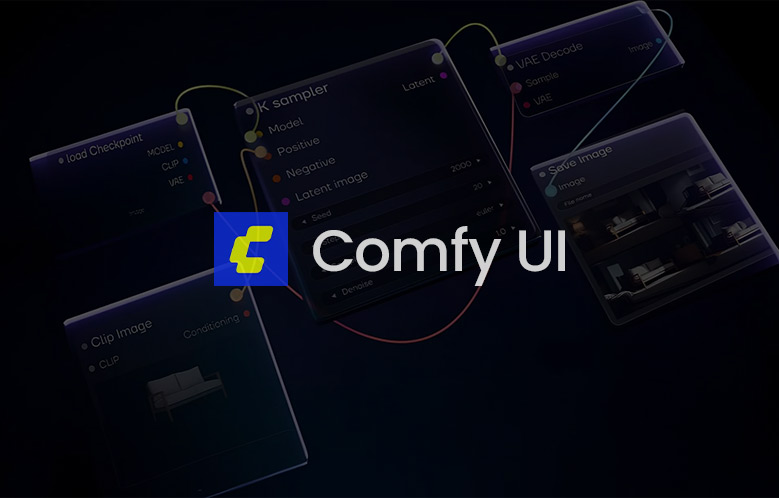
ComfyUI
For local AI image generation, ComfyUI is one of the most flexible options.
It uses a node-based workflow system and can be used with models such as Stable Diffusion and FLUX.
It is particularly useful when you want detailed control over an image-generation pipeline.
How to Run an AI Model Locally with Ollama
Ollama provides one of the easiest entry points for local LLMs.
Step 1: Install Ollama
Download and install Ollama for your operating system.
Step 2: Open the Terminal
After installation, open your terminal or command prompt.
Step 3: Download and Run a Model
For example:
ollama run gemma3Ollama will download the required model if it isn’t already installed.
Step 4: Start Chatting
Once the model is loaded, you can interact with it directly through the terminal.
You can ask questions, generate content, analyze information, or use it for coding assistance.
Running AI on Windows
Windows is one of the most popular platforms for local AI.
A typical setup might include:
- Windows 11
- NVIDIA GPU
- 16–64 GB RAM
- NVMe SSD
- Ollama or LM Studio
For image generation, applications such as ComfyUI can also be installed locally.
If you have an NVIDIA GPU, make sure your drivers and supported AI frameworks are properly configured.
Running AI on macOS
Apple Silicon Macs can also run local AI models.
Macs with Apple Silicon benefit from unified memory, allowing the CPU and GPU to share a large memory pool.
This can make certain local AI workloads surprisingly capable even without a traditional dedicated GPU.
The practical performance depends on:
- M-series chip
- Unified memory capacity
- Model size
- Quantization
- Software implementation
Running AI on Linux
Linux is particularly popular among developers and AI researchers.
It provides access to a broad ecosystem of:
- CUDA
- PyTorch
- ROCm
- llama.cpp
- Ollama
- Docker
- Hugging Face tools
If you want to build custom AI pipelines or work directly with machine-learning frameworks, Linux can provide extensive control.
Running AI for Programming
Local AI can also be used as a programming assistant.
You can run a local model and connect it to coding tools or development environments.
Typical use cases include:
- Code generation
- Code completion
- Debugging
- Refactoring
- Documentation
- Explaining code
- Generating tests
A local coding workflow might look like:
Local LLM
    ↓
Coding Assistant
    ↓
IDE
    ↓
Your Codebase
This can be particularly useful when you don’t want private source code sent to an external AI service.
Running AI Image Generation Locally
Local image generation requires different software and hardware considerations than language models.
Popular tools include:
- ComfyUI
- Stable Diffusion interfaces
- FLUX workflows
A typical workflow looks like:
Prompt
  ↓
AI Model
  ↓
Sampler
  ↓
Image Processing
  ↓
Generated Image
Image-generation models can require substantial GPU VRAM, particularly at higher resolutions or when using more complex workflows.
How Much Does Local AI Cost?
The cost depends largely on your existing hardware.
If you already have a powerful computer, your additional software cost may be minimal because many local AI tools and models are open source or freely available.
If you need to build a dedicated AI PC, the GPU can become the largest expense.
A rough way to think about the budget is:
| System Level | Typical Hardware | Suitable For |
|---|---|---|
| Entry Level | 16 GB RAM, modest GPU/CPU | Small models and experimentation |
| Mid Range | 32 GB RAM, 12–16 GB VRAM | Medium models and image generation |
| High End | 64 GB+ RAM, 24 GB+ VRAM | Larger models and advanced workflows |
| Workstation | High-memory GPU / multiple GPUs | Large models and professional workloads |
These are broad categories rather than fixed specifications.
Local AI vs Cloud AI
| Feature | Local AI | Cloud AI |
|---|---|---|
| Privacy | High control | Depends on provider |
| Internet | Often optional | Usually required |
| Hardware | Required | Provider handles it |
| Initial cost | Potentially high | Usually lower |
| Recurring cost | Potentially low | Often subscription/API based |
| Model choice | High control | Provider controlled |
| Setup | More technical | Usually easier |
| Performance | Hardware dependent | Server dependent |
Neither approach is universally better.
For maximum convenience, cloud AI is often easier.
For privacy, control, and offline access, local AI can be a better option.
Local AI vs Cloud AI: Which Should You Choose?
Choose local AI if you prioritize:
- Privacy
- Offline access
- Model control
- Experimentation
- Local development
- Long-term usage
Choose cloud AI if you prioritize:
- Ease of use
- Access to powerful models
- Minimal hardware requirements
- Fast setup
- Managed infrastructure
You can also use a hybrid workflow, where sensitive or repetitive tasks run locally while more demanding tasks use cloud models.
Common Problems When Running AI Locally
Not Enough VRAM
The model may fail to load or run extremely slowly.
Solution: Use a smaller or quantized model, reduce context size, or use hardware with more VRAM.
Slow Inference
If the model runs primarily on the CPU, generation can be significantly slower.
Solution: Use GPU acceleration where supported or choose a smaller model.
Not Enough RAM
Large models and applications can consume substantial system memory.
Solution: Close unnecessary applications or upgrade your RAM.
Insufficient Storage
AI models can take up significant disk space.
Solution: Use an SSD with enough free capacity and remove unused models.
Driver Problems
GPU drivers can cause compatibility issues.
Solution: Keep your GPU drivers and AI framework versions compatible.
Tips for Better Local AI Performance
Choose the Right Model Size
Don’t automatically download the largest model available.
A smaller model that fits comfortably in memory can provide a much better experience.
Use Quantized Models
Quantization can reduce memory consumption and make local inference practical on consumer hardware.
Keep Models on an SSD
Fast storage can improve model loading and overall workflow responsiveness.
Monitor VRAM and RAM
Monitor system resources while running your model.
This can help identify whether the bottleneck is:
- VRAM
- RAM
- CPU
- GPU
- Storage
Start Small
If you’re new to local AI, start with a smaller model before experimenting with large models and complex pipelines.
Is Running AI Locally Worth It?
For many users, yes.
Local AI is particularly valuable if you:
- Work with private data
- Frequently use AI
- Want offline access
- Like experimenting with models
- Develop AI-powered applications
- Want greater control over your AI environment
However, local AI requires more technical knowledge than using a web-based AI service.
You need to understand hardware requirements, model formats, memory usage, drivers, inference engines, and software configuration.
Conclusion
Running AI on a personal system is now a realistic option for many users.
With tools such as Ollama, LM Studio, llama.cpp, and ComfyUI, you can run language models, coding assistants, and image-generation models directly on your own computer.
The most important factor when building a local AI system is matching the model size to your available hardware, particularly GPU VRAM and system RAM.
If you’re just getting started, begin with a lightweight model using Ollama or LM Studio. Once you’re comfortable with local inference, you can explore quantization, custom models, coding assistants, image generation, and more advanced AI workflows.
FAQ: Running AI on a Personal System
Can I run AI on my personal computer?
Yes. Many AI models can be run locally on modern Windows, macOS, and Linux computers.
Do I need a powerful GPU to run AI?
Not always. Small models can run on CPUs, but a dedicated GPU with sufficient VRAM can significantly improve performance.
How much RAM do I need for local AI?
16 GB can be enough for basic experimentation, while 32 GB or more provides greater flexibility for larger models and more demanding workflows.
How much VRAM do I need for AI?
It depends on the model. 8 GB can handle some smaller workloads, while 12 GB, 16 GB, 24 GB or more provides access to increasingly larger models and more complex workloads.
Can I run AI without an internet connection?
Yes. Once the software and model files are installed, many local AI systems can operate offline.
What is the easiest way to run an AI model locally?
Ollama and LM Studio are among the easiest options for running local language models.
Can I run ChatGPT locally?
You cannot simply install the ChatGPT service itself on your computer. However, you can run other compatible open-weight language models locally using tools such as Ollama, LM Studio, or llama.cpp.
Can I run AI image generation locally?
Yes. Tools such as ComfyUI can be used to run compatible image-generation models locally.
Is local AI faster than cloud AI?
It depends on your hardware and the model. High-end cloud infrastructure can be much faster for large models, while a powerful local GPU can provide excellent performance for models that fit its memory.
Is local AI completely free?
The software and models may be available at no cost, but local AI still has hardware, electricity, storage, and maintenance costs.
Is local AI more private?
Local inference can provide greater control because data can remain on your own machine. However, privacy also depends on the software, integrations, telemetry, and other components of your setup.


Leave a Comment